Show points on product pages
When this step is done, shoppers see what a product would earn before they add it to the cart.
In EarnKit: Onsite › Points on product pages
This is the only display a shopper sees before they have bought anything, and the only one that works for someone who is not signed in. It shows an estimate next to the price: what this product would earn at your rate.
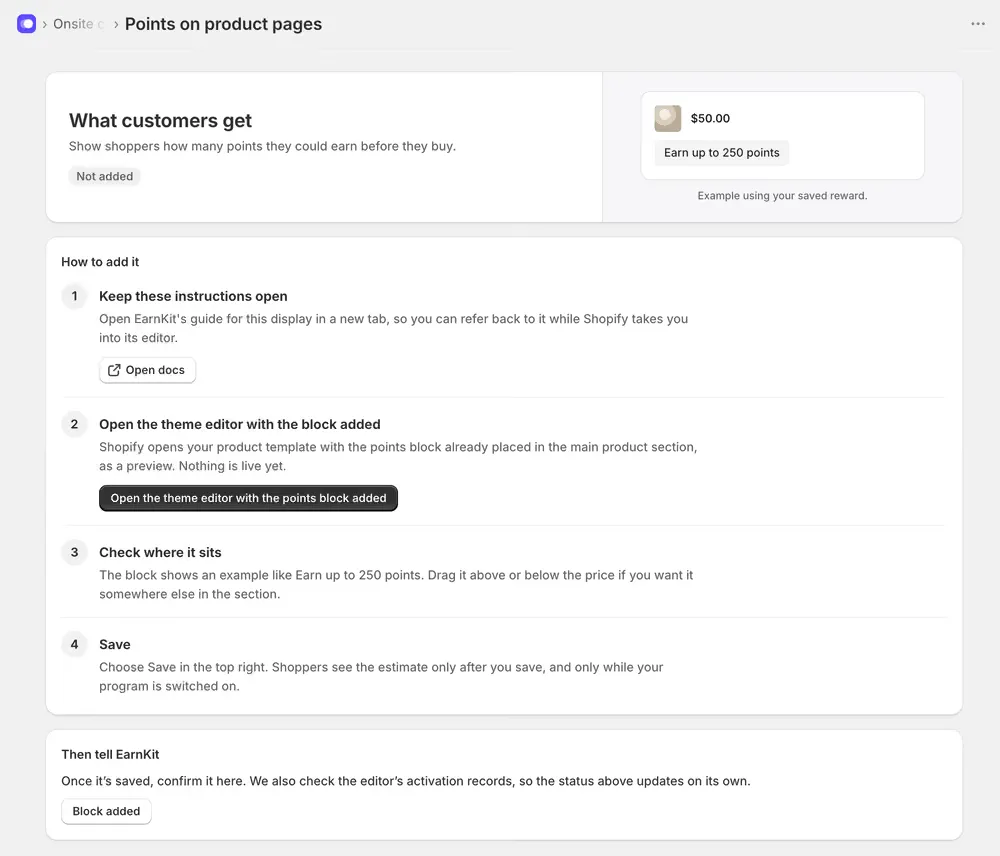
It is Recommended rather than required. Your program works without it; this is about telling shoppers the program exists at the moment they are deciding.
Add it to your theme
Unlike the Rewards page, EarnKit can hand Shopify the block already placed. Open the theme editor with the points block added opens your product template with the block sitting in the main product section, as a preview. Nothing is live at that point.
- Check where it sits. The block shows an example such as “Earn up to 250 points”. Drag it above or below the price if you would rather it sat somewhere else in the section.
- Save, top right.
Shoppers see the estimate only after you save, and only while your program is switched on.
Change the wording
Select the block in the theme editor to open its settings. The wording is yours; only the number comes from EarnKit.
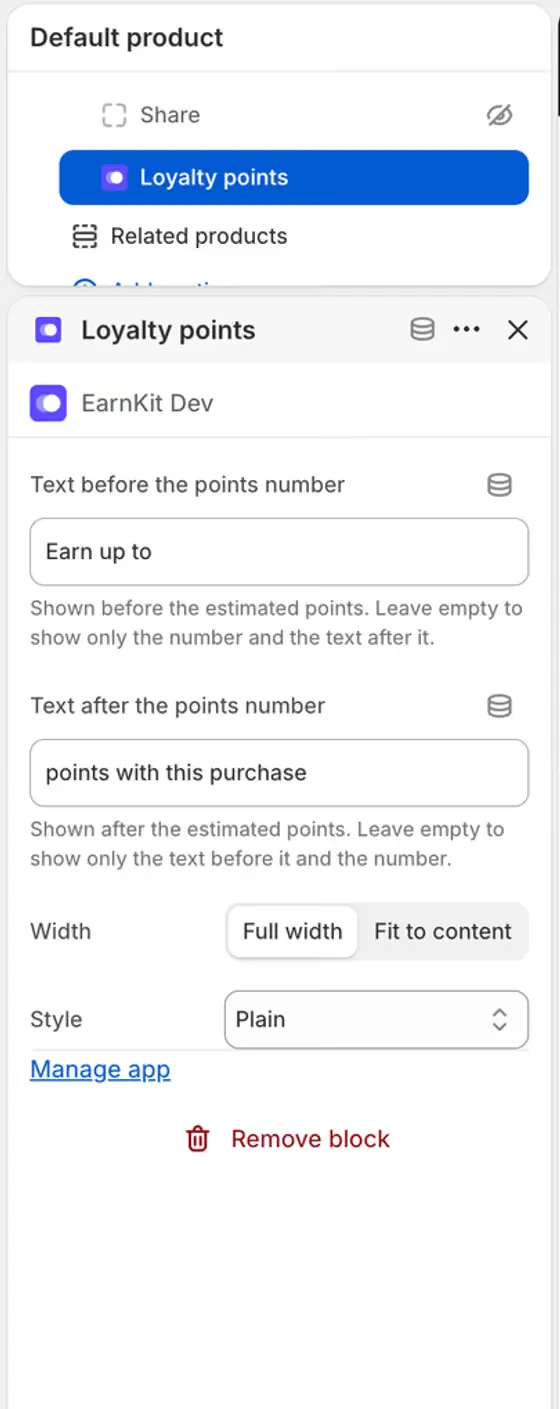
| Setting | What it does |
|---|---|
| Text before the points number | What reads before the figure, such as “Earn up to”. Leave it empty to start with the number. |
| Text after the points number | What reads after it, such as “points with this purchase”. Leave it empty to end with the number. |
| Width | Full width, or Fit to content so it sits tight around the text. |
| Style | How much the block stands out against your theme. |
Between the two text fields, the block reads as one sentence, so write them as a pair and check the preview rather than each field on its own.
EarnKit notices this one by itself
The Rewards page needs you to confirm you linked it. This one does not, and the difference is not arbitrary: a theme block is something EarnKit can see in your published theme, and seeing it is proof a shopper can reach it. The status updates on its own once the block is live.
Block added is there if you want to confirm it yourself rather than wait.
The estimate follows your points rate. If you change the rate later, product pages show the new figure; you do not have to touch the theme again.